
Getting Started with Trinity · Chapter 8 of 15
Google Merchant Center

Google Merchant Center puts your products in Google's free product listings and, if you run ads, in Shopping ads. Trinity builds the feed; you give Google the address.
Set it up
- Go to
merchants.google.comand create an account with the same Google account as your Search Console. Enter your business details. - Verify and claim your website. If Search Console is already verified under the same account, Google can verify it in one click.
- In your admin open Google Feed (left menu, under Data Feeds; the page is Google Merchant Feed), turn it on, save, and copy the Feed URL. See Google product feed and analytics.
- In Merchant Center open Products, Add products, choose a scheduled fetch, paste the URL and set it to fetch daily. Trinity rebuilds the feed every few hours.
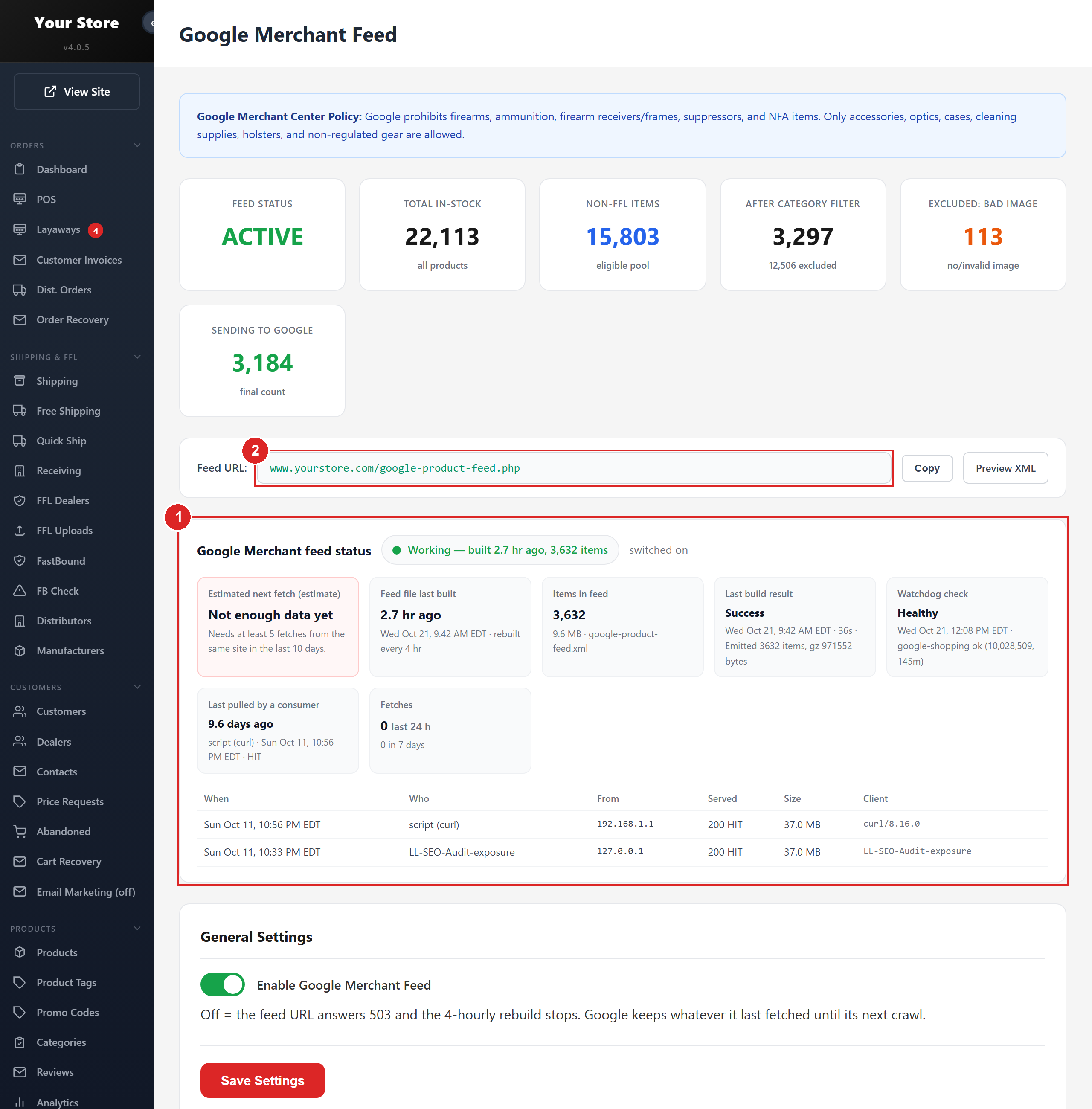
- 1Feed status: when it was last built and how many products are in it
- 2The feed URL to paste into Merchant Center as a scheduled fetch
What Google will not show
Google does not allow firearms, ammunition, magazines, receivers, or any part or accessory that makes a weapon function better: sights, scopes, mounts, grips, stocks, triggers, barrels, chokes, reloading components. That is most of a gun store. Your feed sends only the categories Google accepts (holsters, cases, apparel, cleaning gear, range gear, knives that are allowed, and the like), about 180 categories, so you are not disapproved for the rest. See What Google Shopping will not show.
Expect some disapprovals anyway: a product with a missing image, a title Google reads as a weapon part. Merchant Center lists them. Send us the item and we take it out of the feed.