
Getting Started with Trinity · Chapter 7 of 15
Google, Bing and the search engines
Google is the number one source of visitors on every mature store on Trinity. Bing, DuckDuckGo and Yahoo together send about one seventh as many on our own store, and on one store they send more than Google. All of it is free. None of it happens until the search engines know your store exists, and that takes weeks, so this is a day one job.


What Trinity already does
- Builds your sitemap every night: every product, category, brand and page, at
www.yourstore.com/sitemap.xml. - Submits your new and changed pages to IndexNow every night, which feeds Bing, Yandex, Naver and Seznam.
- Writes the page titles, descriptions, product structured data and canonical links that search engines read.
- Shows you a Search Console report inside your admin once your property is connected.
Google Search Console
- Go to
search.google.com/search-consoleand sign in with the Google account you want to own your store's data. - Click Add property and choose Domain. Enter your domain without www.
- Google shows a TXT record. Add it at wherever your domain's DNS is managed (GoDaddy, Hostinger, Cloudflare, your registrar). If we manage your DNS, send us the record and we add it. Click Verify. It can take an hour.
- Open Sitemaps and submit
https://www.yourstore.com/sitemap.xml. - Come back after a week. Pages shows how many are indexed, Performance shows the searches you appear in.
- To see Search Console inside your admin, open SEO Gap Report and follow its three steps: create a service account in Google Cloud with the Search Console API turned on, give that account's address Full access to your property in Search Console, and paste its JSON key.
Bing Webmaster Tools
- Go to
bing.com/webmastersand sign in. - Choose Import from Google Search Console. One click verifies your site and imports the sitemap. If you skip that, add the site and verify it with the DNS record Bing gives you.
- Submit the same sitemap address.
Bing powers DuckDuckGo and Yahoo as well, so this one step covers three engines.
Google Analytics
- Go to
analytics.google.com, create an account and a property for your store, and a web data stream for your domain. - Copy the Measurement ID. It starts with G.
- In your admin open Settings, find Google Tracking, paste it into GA4 Measurement ID(s) and click Save Google Tracking. Nothing is tracked until your own ID is entered.
Your admin's own Analytics page already shows visitors, sources, conversion and checkout starts from the platform's data, robots removed. Google Analytics adds the demographic and campaign detail on top.
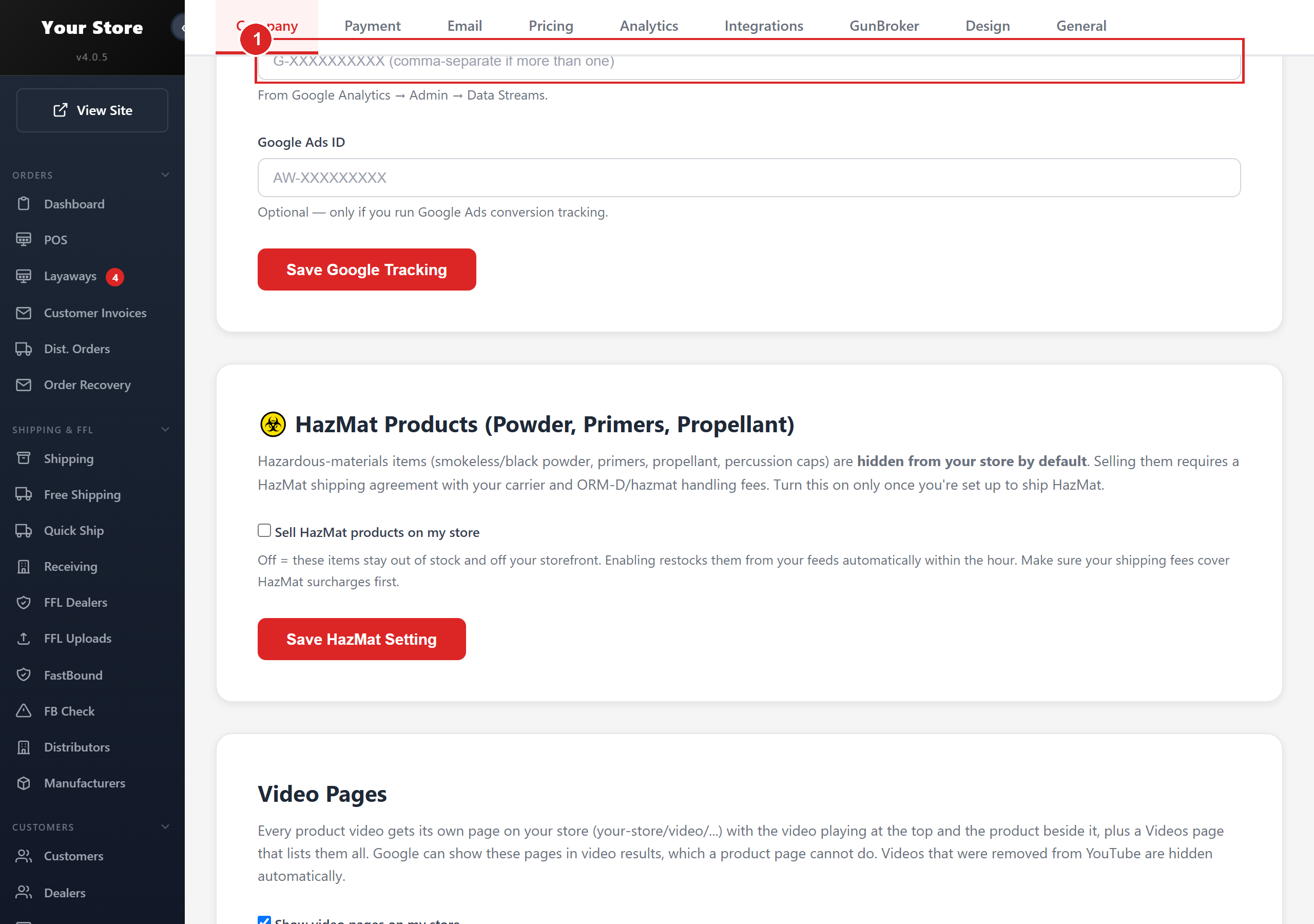
- 1Paste your GA4 Measurement ID here (it starts with G)
What to expect
- Product pages start appearing in Google within one to three weeks. A full catalog takes months to index. Search Console's Pages report is the honest meter.
- Brand and category pages rank first. Your own pages (about, classes, services) rank for your town and your name.
- AI assistants read the same pages. ChatGPT sent our own store 119 visits last month and 22 orders this quarter, with no setup at all.